Free SVG Files for Cricut: Where to Find Them and How to Use Them
By Makerloom Studio · Published · 14 min read
Quick answer
You can get free SVG files for Cricut from studio sites that give away their own designs, from public domain libraries, from craft blogs with free files for subscribers, and from the free images inside Design Space. Before you cut, check the license, the layers and the size. Then upload the SVG in Design Space with Upload, then Upload Image, size it on the Canvas, and select Make.
Key takeaways
- Free SVG files come from four kinds of places, and each one handles licenses differently.
- Read the license before you cut anything you plan to sell, even when the file is free.
- Design Space accepts SVG and DXF as cut-ready vector files; SVGs over 5,000 paths fail to upload.
- Size the design for your machine. A 12 x 12 in mat cuts up to 11.5 x 11.5 in.
- A clean free SVG is all flat color shapes, with text turned into outlines and no embedded photos.
Free SVG files for Cricut are everywhere, but not all of them cut well, and not all of them are free to sell from. This guide shows where to find good free files, how to check one in two minutes before you waste vinyl, and how to upload, size and cut it in Design Space. We make free cut files ourselves, so this is the practical version, not the theory.
What an SVG file is, and why your Cricut likes it
An SVG is a vector file. It stores shapes as math, so you can scale it from a 1 inch sticker to a 20 inch banner and the edges stay sharp.
That matters for a cutting machine. Your Cricut follows the outline of each shape with a blade. A vector file hands it those outlines ready to go.
A PNG or JPG is different. It is a grid of pixels. Design Space can turn one into a cut shape, but you have to clean up the background first, and fine edges can come out soft.
Cricut's own upload guide puts it in two groups:
| File type | What Design Space calls it | What happens on upload |
|---|---|---|
| SVG, DXF | Vector image | Cut-ready, uploads as designed, layers split out automatically |
| PNG, JPG, GIF, BMP, HEIC | Basic (raster) image | One layer; you erase the background and pick a cut type |
So when a free design comes as both an SVG and a PNG, use the SVG for cutting. Keep the PNG for Print Then Cut, sublimation and stickers.
Where to find free SVG files for Cricut
Free files come from four kinds of places. Each one is fine to use. The difference is how much checking you need to do.
1. Studio sites that give away their own designs
Some studios make original cut files and share them for free. That's what we do at Makerloom. Every design is made in-house, free to download, with no account and no watermark on the file.
As of October 14, 2026, 209 of our designs include an SVG (Makerloom data). You'll find them on the design page next to the PNG, and each page lists exactly which formats that design ships. Start with the SVG cut files category, or browse by project: T-shirt designs, mug and drinkware designs and tote bag designs.
The upside of a studio site is that one team made the file and one license covers it. You know who to trust.
2. Public domain libraries
Public domain libraries hold thousands of user-uploaded vectors. FreeSVG, for example, says its files carry a CC0 public domain license, so you can use them for anything.
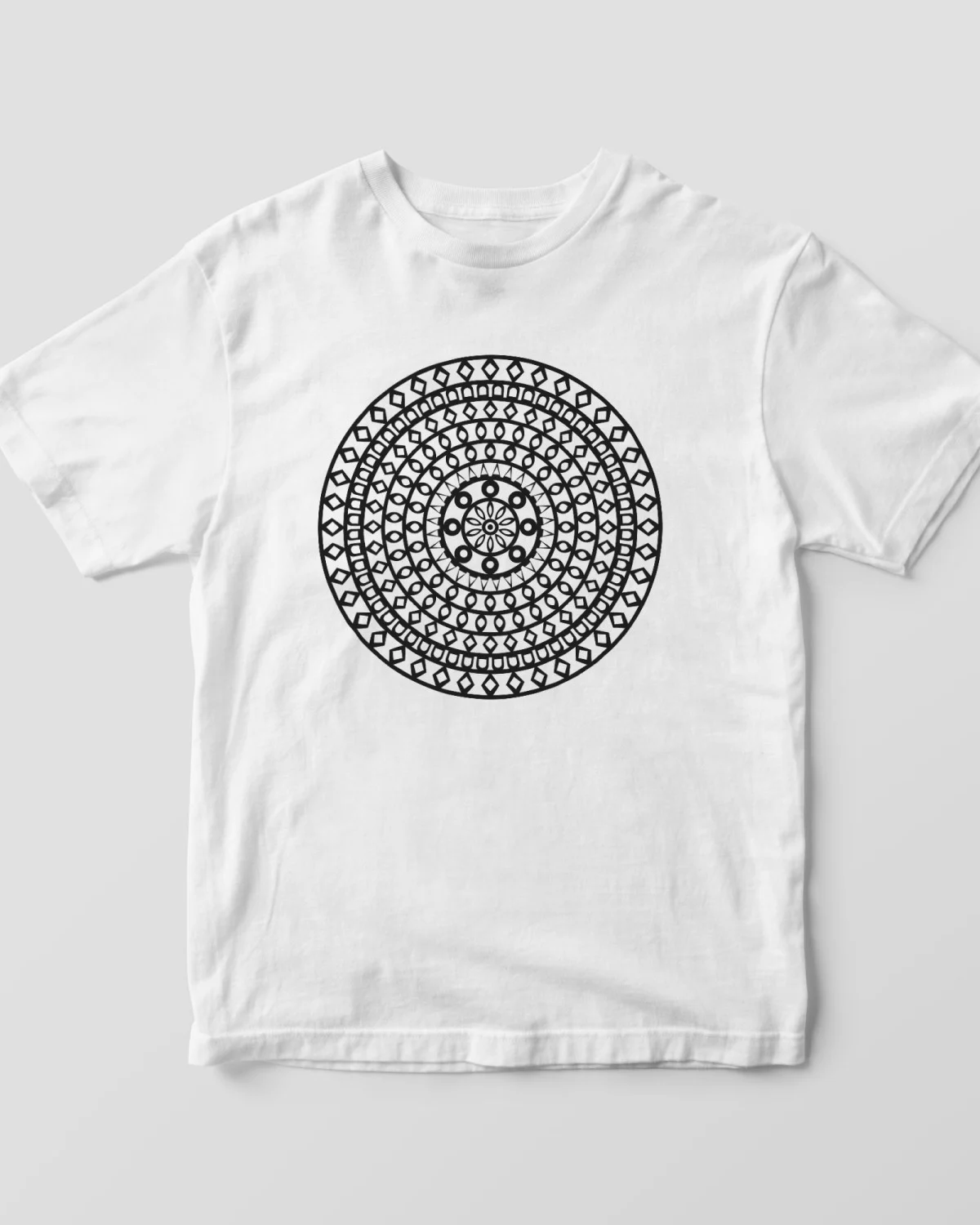
The catch is quality. Many of these files were drawn for screens, not blades. Expect hairline strokes, overlapping shapes and lots of tiny pieces. Run the checklist below on every one.
3. Craft blogs with free files for subscribers
Many craft bloggers share a free file with each tutorial. Some put a whole library behind a free email sign-up and a password.
These are often well made, because the blogger cut the project for the photos. The license is usually personal use only, so read it before you make anything to sell.
4. Free images inside Design Space
Design Space itself has free images and ready-to-make projects. Cricut's Joy Quick Start Guide says every Design Space user gets extra fonts, images and projects at no charge. Look for them under My Stuff, then Projects, with the Purchased filter.
Those aren't SVG downloads, but they cut the same way. If you sell what you make with them, read the selling rules further down.
The 10-point check before you cut a free SVG
Run these ten checks on any free file before you cut. Every point comes from Cricut's list of unsupported items or from a mistake that costs real material.
- It's really an SVG. The file name ends in .svg. If you got a .zip, unzip it first. Design Space can't open a ZIP.
- The license fits your plan. Personal gift, classroom, or items you'll sell? Find the license on the download page and save a copy.
- Flat colors only. Gradients, textures and patterned fills can't be cut. Cricut says files with pattern fills trigger an upload error.
- Text is outlined. Live text in an SVG fails. The designer should have converted it to shapes.
- No photos inside. An embedded or linked image stops the file from splitting into layers.
- No clipping masks. Masked shapes confuse the upload. Flattened shapes are fine.
- Fewer than 5,000 paths. Cricut caps SVG uploads at 5,000 paths. Very detailed mandalas and traced photos can go over.
- Pieces you can actually weed. Zoom in. Bits smaller than a grain of rice will tear in vinyl.
- Layers that make sense. In a multi-color design, each color should be its own layer with clean edges.
- A size printed on the page. A good file tells you the size it was designed for, so thin lines don't get too thin when you shrink it.
If a file fails points 3 to 6, you have two choices. Fix it in a vector editor, or upload the PNG version and use Print Then Cut instead. Cricut suggests the same fallback.
- Download and unzipSave the .svg somewhere you can find it. Unzip it first if it came in a ZIP.
- Check the licensePersonal, classroom or selling? Match the license to your plan and keep a copy.
- Upload in Design SpaceUpload, then Upload Image. Pick the SVG, name it, tag it, and select Upload.
- Size it on the CanvasSet the width for your project and keep it inside your machine's cut area.
- Mirror iron-on, then MakeMirror anything you'll press face down. Select your material and load the mat.
- Weed and applyRemove the waste, then transfer the design with transfer tape or a heat press.
How to upload a free SVG to Design Space
The steps are short. These come from Cricut's upload guide for Windows and Mac.
- Open a new Canvas and select Upload in the left panel, then Upload Image.
- Select Browse, or drag the SVG into the window. Design Space sends SVG and DXF files through the vector upload flow.
- Select Continue, name the image and add tags so you can find it later.
- Select Upload. The design lands on your Canvas and in your uploaded images library.
- Layered files come in as a group. Ungroup them to move or resize one layer at a time.
On a phone or tablet, tap Upload, then browse files. You can pick the SVG from Files, iCloud, Dropbox or Google Drive. Cricut notes that DXF files don't work in the iOS and Android apps, so use the SVG there.
Want screenshots of every step? Our step-by-step upload guide walks through it on desktop and mobile.
How to size a free SVG for your machine
Sizing is where most free files go wrong. A design that looks great at 10 inches can turn into unweedable crumbs at 2 inches.
Know your cut area
Each Cricut machine has a maximum cut area, and it depends on the mat or material. These numbers come straight from Cricut Help.
| Machine and setup | Largest cut | Source |
|---|---|---|
| Explore or Maker, 12 x 12 in mat | 11.5 x 11.5 in | Cricut Help |
| Explore or Maker, 12 x 24 in mat | For designs over 11.5 in on either side | Cricut Help |
| Cricut Joy, on a mat | 4.25 x 6.25 in or 4.25 x 11.75 in | Cricut Help |
| Cricut Joy, Smart Materials | One shape up to 4.5 in wide and 4 ft long | Cricut Help |
| Explore or Maker, Print Then Cut on Letter paper | 9.94 in tall or 7.44 in wide | Cricut Help |
If you pick Make and the design is too big for a 12 x 12 mat, Design Space tells you. You can switch to a larger mat or go back and resize.
Sizes that work for common projects
These are common starting sizes, not rules. Measure your blank first, because shirts, mugs and bags vary.
| Project | Typical design width | Watch out for |
|---|---|---|
| Adult T-shirt front | 9 to 11 in | Centered about 3 in below the collar |
| Kids' T-shirt or onesie | 5 to 7 in | Thin lines lift in the wash |
| 11 oz mug decal | 3 to 3.5 in tall | Curved surface, so skip wide designs |
| Tote bag | 8 to 10 in | Canvas weave needs a firm press |
| Car or laptop decal | 3 to 5 in | Small text tears when you weed |
| Wood sign, 12 x 18 in | 10 to 15 in | May need the 12 x 24 mat |
The shrink rule
When you shrink a design, everything shrinks: letters, gaps and line widths. A line that was a comfortable 2 mm at 10 inches becomes under half a millimeter at 2 inches. That's too thin for most vinyl.
So scale with care. If you need a small version, look for a simpler design, or delete the finest details before you cut.
Always lock the proportions when you resize. In Design Space, the padlock icon next to width and height keeps the shape from stretching.
Making layered SVGs line up
Multi-color designs come in layers. Each color cuts from a different sheet, then you stack them.
A few habits make layers line up:
- Keep the group together while sizing. Resize the whole group, not one layer, or the layers stop matching.
- Attach before you cut. Attach keeps each layer's pieces in position on the mat. Without it, Design Space packs shapes to save material and your layout is lost.
- Start with the bottom layer. Usually that's the largest, darkest shape. Build up from there.
- Use registration marks if the design has them. Some designers add small marks or a frame that you remove after lining up.
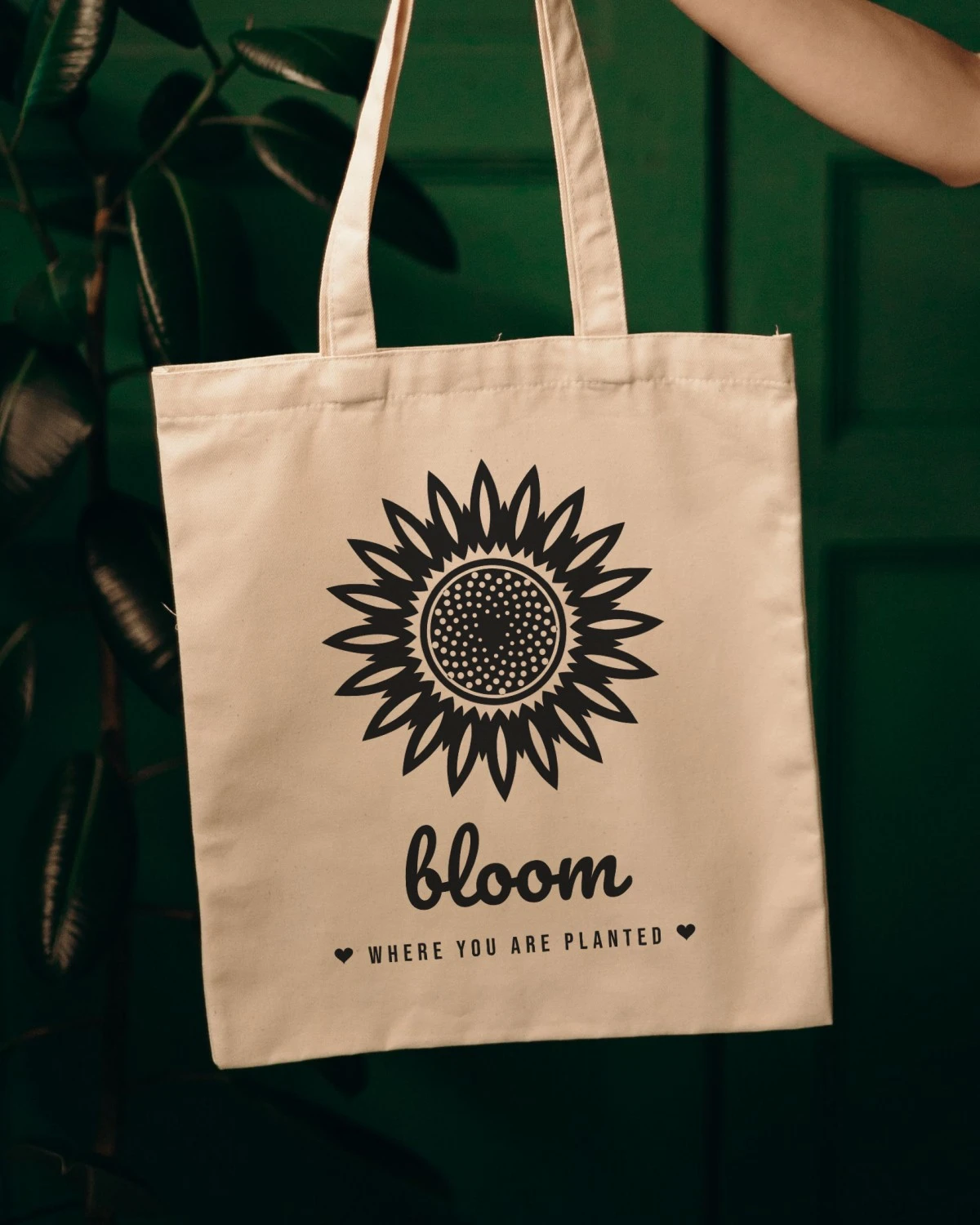
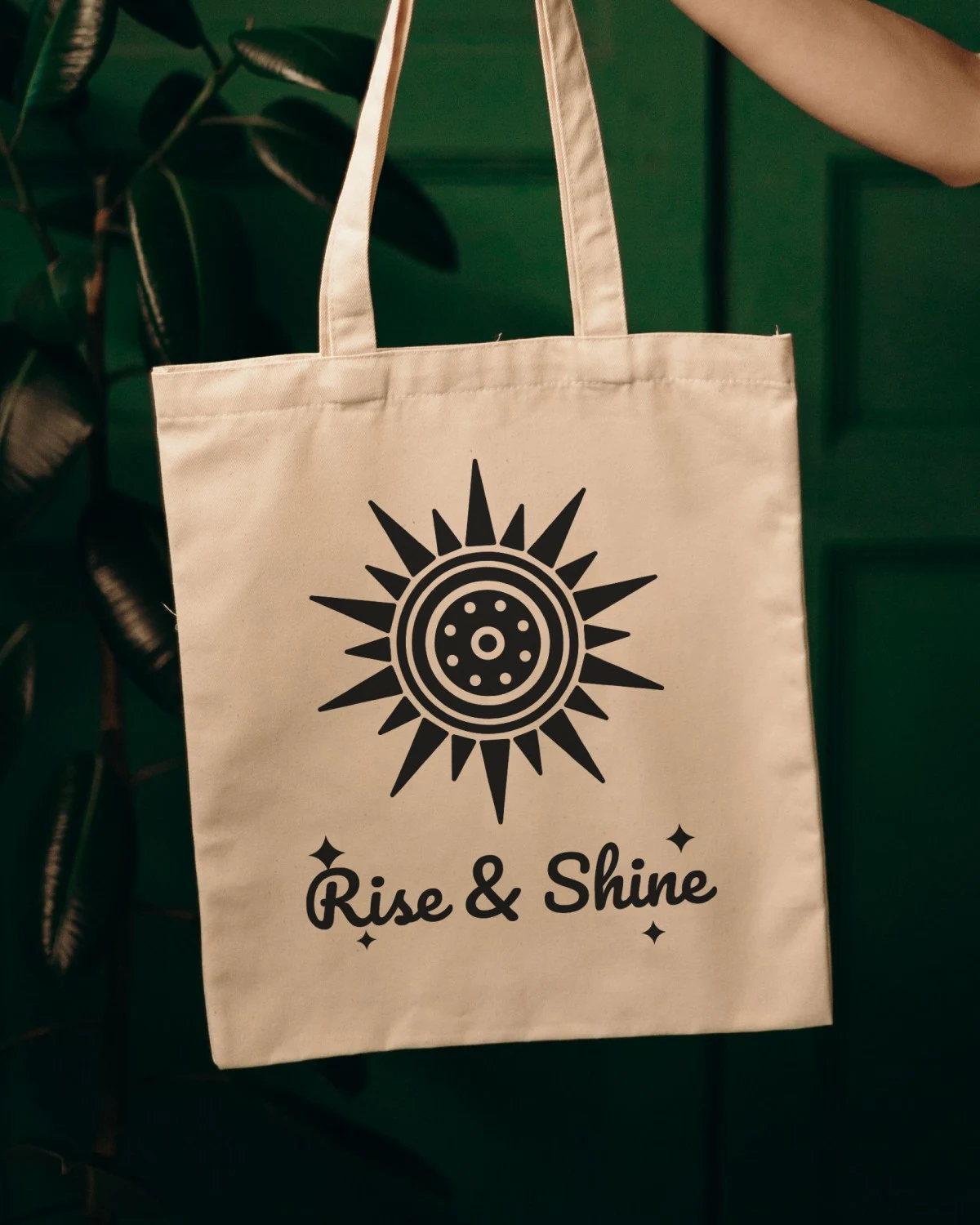
Want to practice? Try our sunflower SVG or boho sun cut file, and run the checklist on them first.
Free SVG licenses, decoded
The license decides what you're allowed to do with what you make. Free files are no exception. Here is what the common ones mean, in plain words.
Public domain and CC0
The creator gave up their rights. You can use the file for anything, including items you sell. FreeSVG's files are CC0, for example.
Creative Commons with conditions
Creative Commons has six licenses. The letters tell you the rules:
- BY means you must credit the creator.
- NC means noncommercial only. No selling.
- ND means no changes. You can't edit or adapt it.
- SA means any version you change must be shared under the same license.
A CC BY file is fine for a shirt you sell, as long as you credit the creator. A CC BY-NC file is fine for a gift but not for your craft fair table.
Personal use only
Many blog freebies use this. Make it for yourself, your home or a gift. Don't sell anything made with it.
Small business or commercial licenses
These let you sell finished items, usually with a cap. Our own license is one example. Most Makerloom designs carry the Personal & Small Business license, which covers personal projects, gifts, classrooms and events, plus selling physical items made with the design, up to 500 items per design. Some designs are Personal Use only, and the design page always shows which. See the full Makerloom license.
Cricut's Angel Policy
Images inside Design Space follow Cricut's own rules. Cricut's Angel Policy post (published on its UK blog in April 2021) says you may sell up to 10,000 finished projects a year made with Cricut images, made by one person, not a team or factory. Licensed images, like characters and brands, are excluded. Check the current policy on Cricut's site before you rely on it.
| Gift or home use | Sell finished items | Credit needed | Share the file | |
|---|---|---|---|---|
| Public domain / CC0 | Yes | Yes | No | Yes |
| CC BY | Yes | Yes | Yes | Yes, with credit |
| CC BY-NC | Yes | No | Yes | Yes, noncommercial |
| Personal use only | Yes | No | Check the page | Usually no |
| Makerloom Personal & Small Business | Yes | Yes, up to 500 items per design | No | No |
Source: Creative Commons license descriptions; FreeSVG; Makerloom license page, checked October 14, 2026
Three things almost no free license allows
- Sharing or reselling the file itself. You can sell the shirt, not the SVG.
- Uploading it to another site, marketplace or print-on-demand library as a design for others.
- Using it as your logo or trademark.
All three are banned under both Makerloom licenses. Check for them in any other license you use.
Pick the right material for the file
The same SVG can become a shirt, a mug decal or a paper card. The material you choose changes how you cut and what you need to watch.
| Material | Good for | Mirror it? | Tip |
|---|---|---|---|
| Iron-on (heat transfer vinyl) | Shirts, totes, pillow covers | Yes | Load it shiny side down |
| Permanent adhesive vinyl | Mugs, tumblers, car decals, outdoor signs | No | Hand wash coated items to make them last |
| Removable adhesive vinyl | Walls, windows, seasonal decor | No | Made to peel off later, so test a hidden spot first |
| Cardstock | Cards, cake toppers, paper flowers | No | Heavier detail cuts better on a fresh blade |
| Stencil vinyl | Painted wood signs, wall stencils | No | Seal the edges before you paint to stop bleeding |
Two simple rules cover most first projects. If the design gets pressed face down with heat, mirror it. If it sticks on like a sticker, don't.
Detail matters too. Fine script and thin lines cut better in adhesive vinyl than in thick glitter iron-on. Save the most detailed free SVGs for paper or smooth vinyl, and pick bolder designs for glitter and flock.
Always do a test cut. Cut a small shape, like a 1 inch star, on the corner of your material first. If it weeds cleanly, you're set.
Keep your free SVG library organized
Free files pile up fast. A little order now saves you a lot of searching later.
- One folder per project type. Shirts, mugs, signs, seasonal. Put each design's SVG, PNG and license note in the same folder.
- Rename files on download. Keep the design name and add the license, like "boho-sun_personal-small-business.svg".
- Tag uploads in Design Space. The upload screen lets you add tags and collections. Use the same words as your folders.
- Save the license with the file. A screenshot or a copied note is enough. Licenses can change, and you'll want to know what terms you downloaded under.
- Delete what you won't use. If a file failed the checklist and you didn't fix it, let it go.
On Makerloom you can also save favorites in your browser without an account, which works well as a wish list for your next project.
Cutting a free SVG on a Silhouette or a laser
SVG is not just for Cricut. A few notes if you use other machines.
Silhouette Cameo. The free Basic Edition of Silhouette Studio doesn't open SVG files. Silhouette America says the paid Designer Edition upgrade adds SVG import, listed at a regular price of $49.99 as of October 2026. On Basic Edition, you can trace a PNG with the built-in trace tool, or use a DXF if the designer offers one.
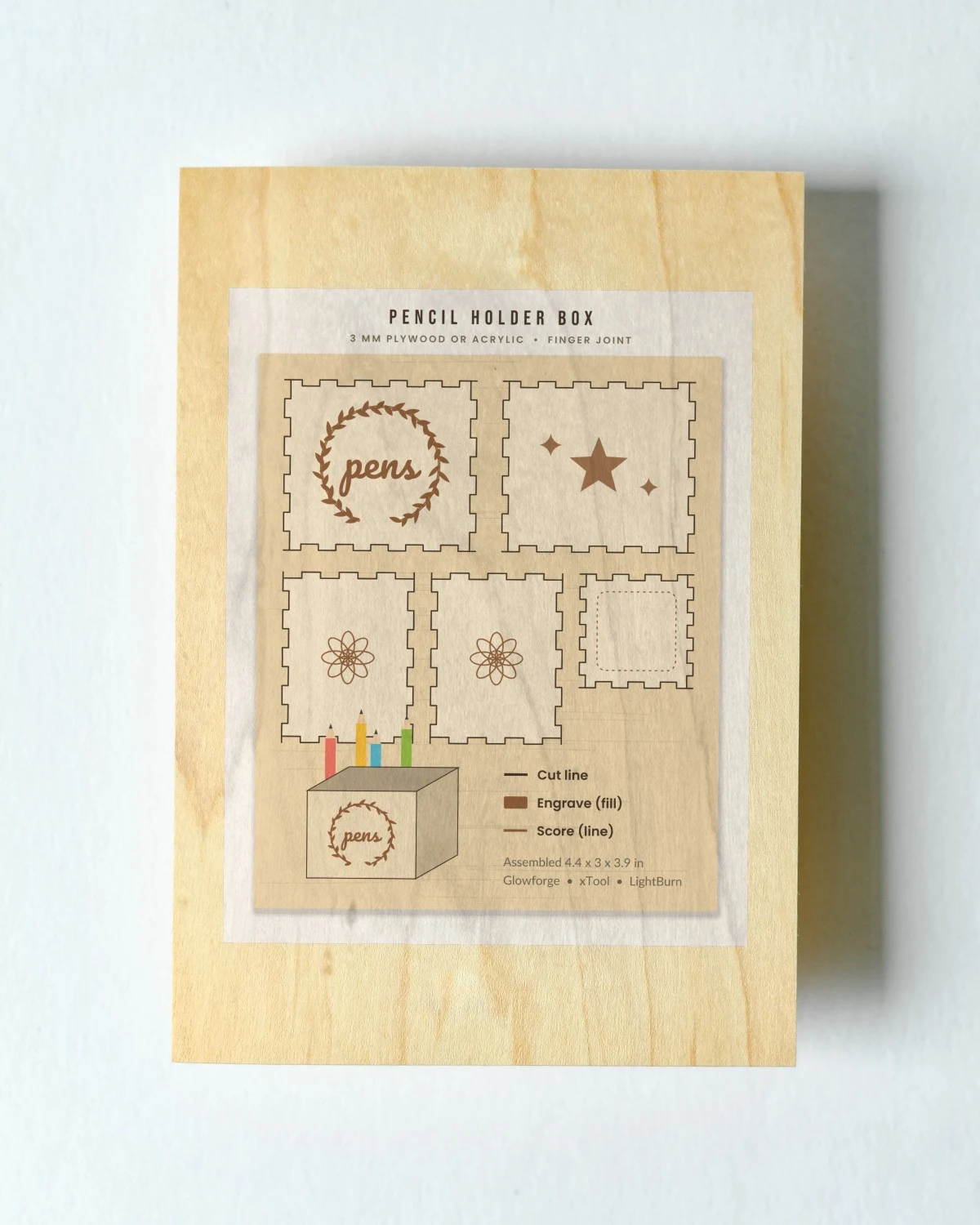
Laser cutters. Glowforge, xTool and similar lasers read SVG files. Laser files need cut lines, score lines and engrave areas set up on purpose, so look for files made for lasers. Our finger joint pencil box is one.
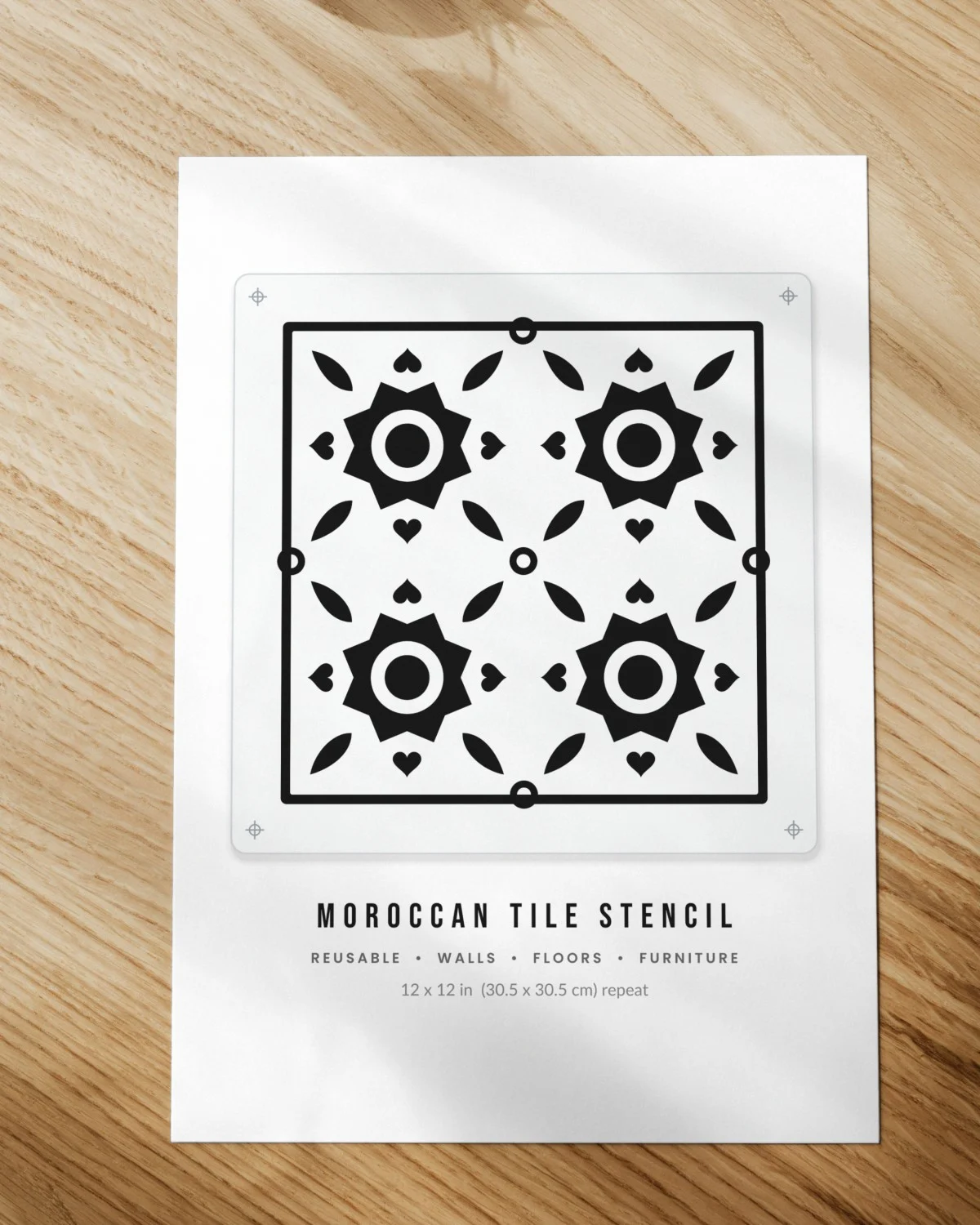
Stencils. A stencil SVG needs bridges, the small links that hold the center of letters like O and A in place. Browse our Moroccan tile wall stencil for a wall pattern.
Five first projects with free SVG files
Not sure where to start? These use one or two colors and forgiving shapes.
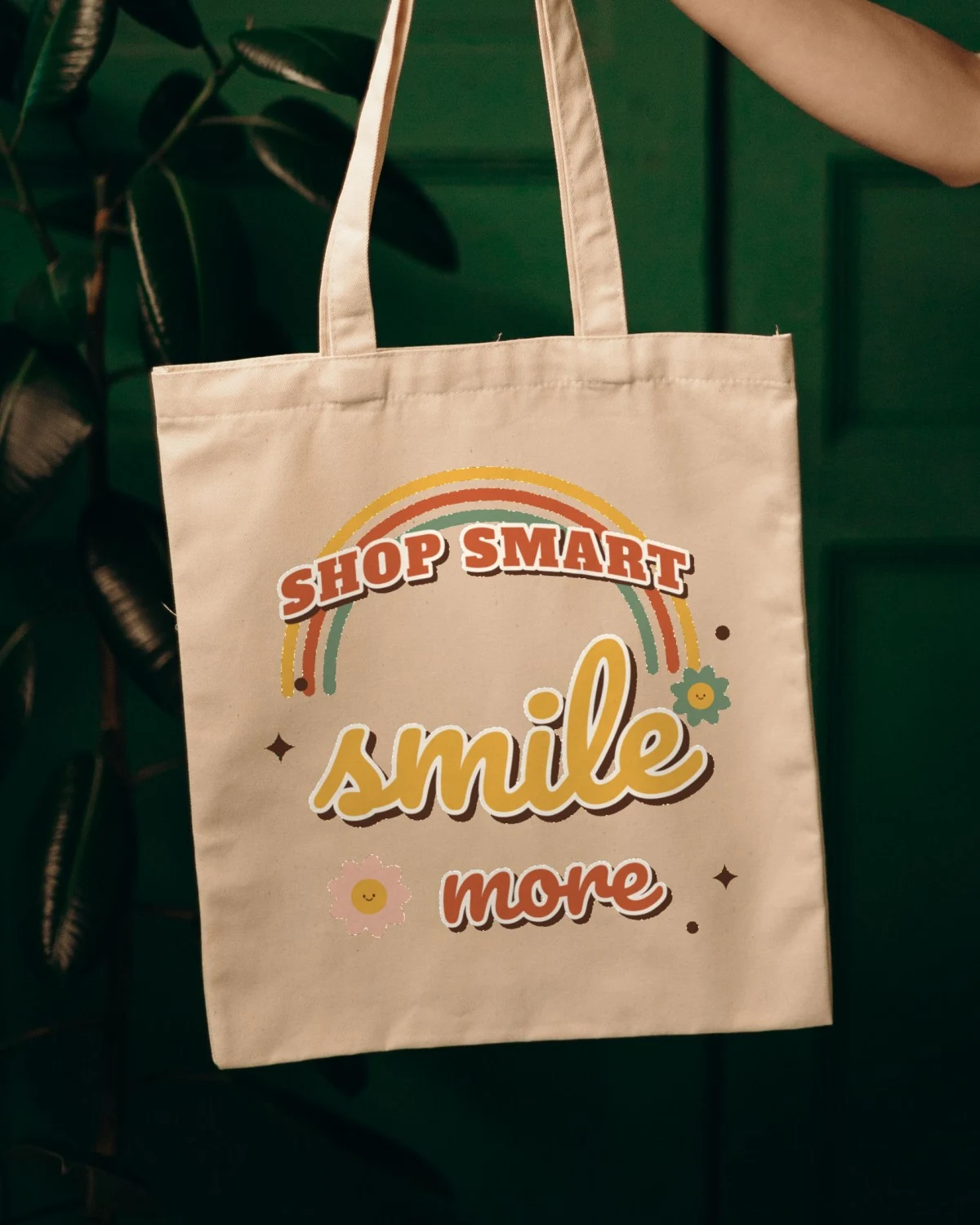
- A one-color tote bag. Iron-on vinyl on canvas. Try our tote bag designs, like the Shop Smart, Smile More bag.
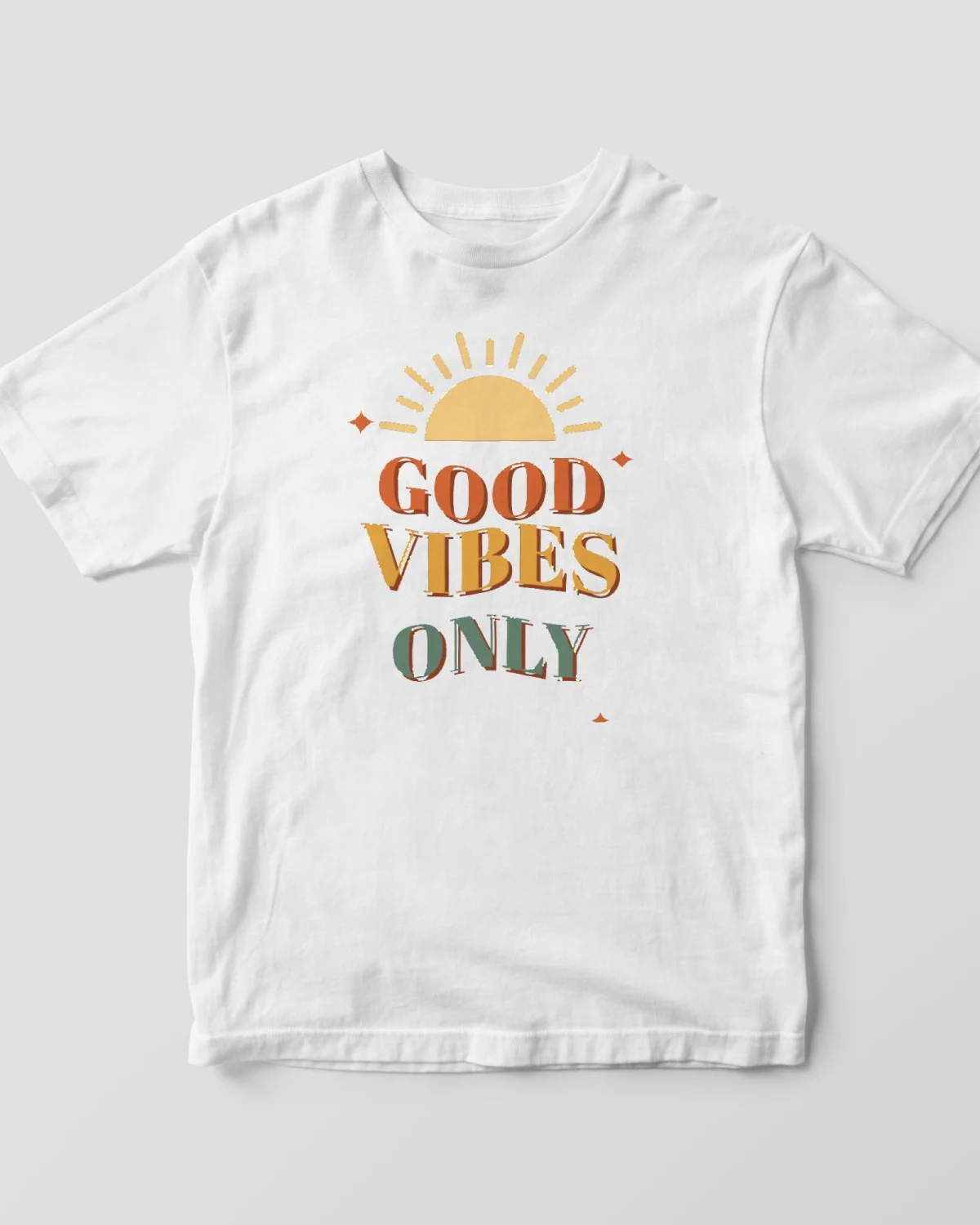
- A T-shirt. Iron-on again, mirrored. Our shirt guide covers temperatures and timing, and Running on Coffee is a fun first design.
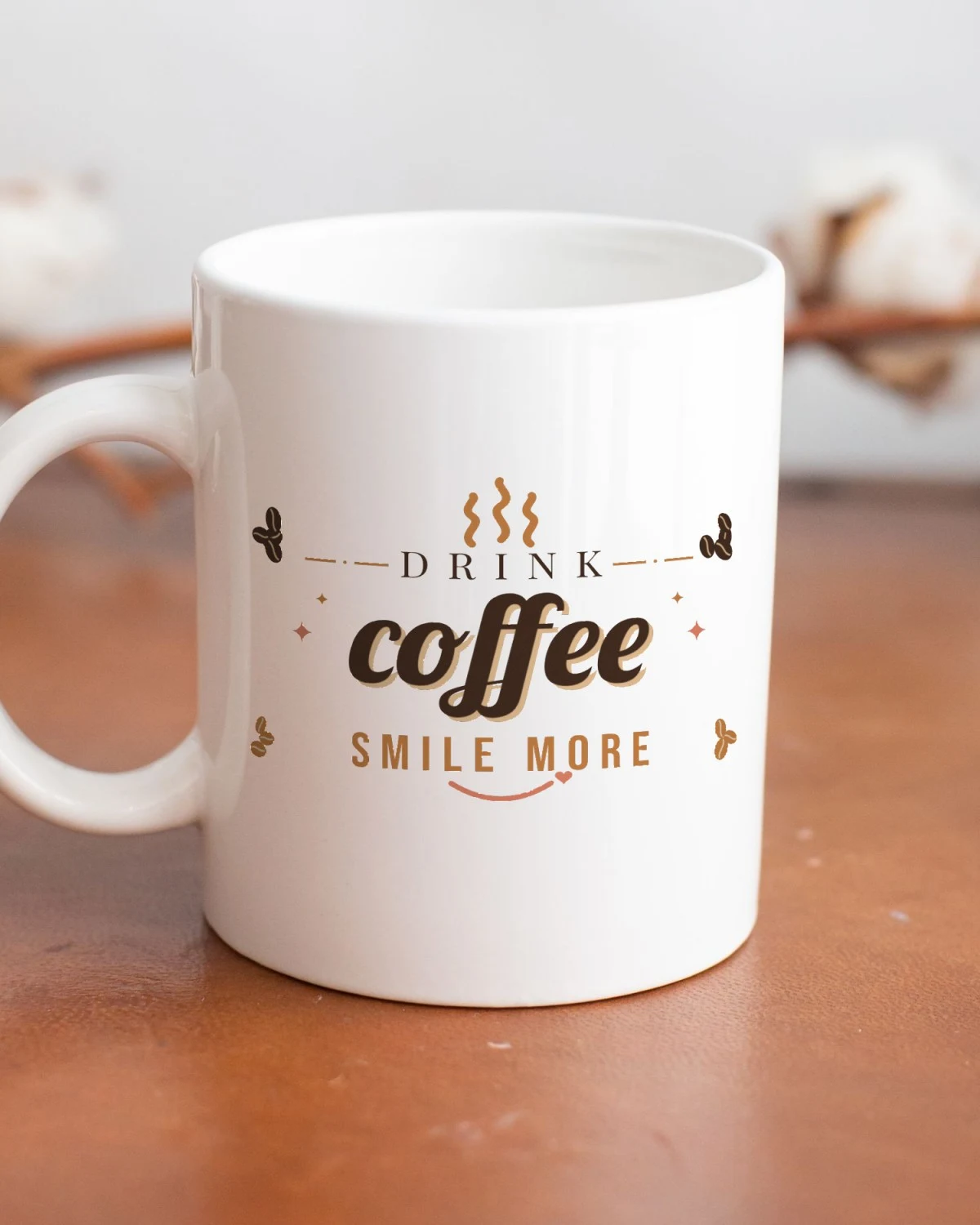
- A mug decal. Permanent vinyl, about 3 inches tall. Try the Drink Coffee, Smile More mug design.
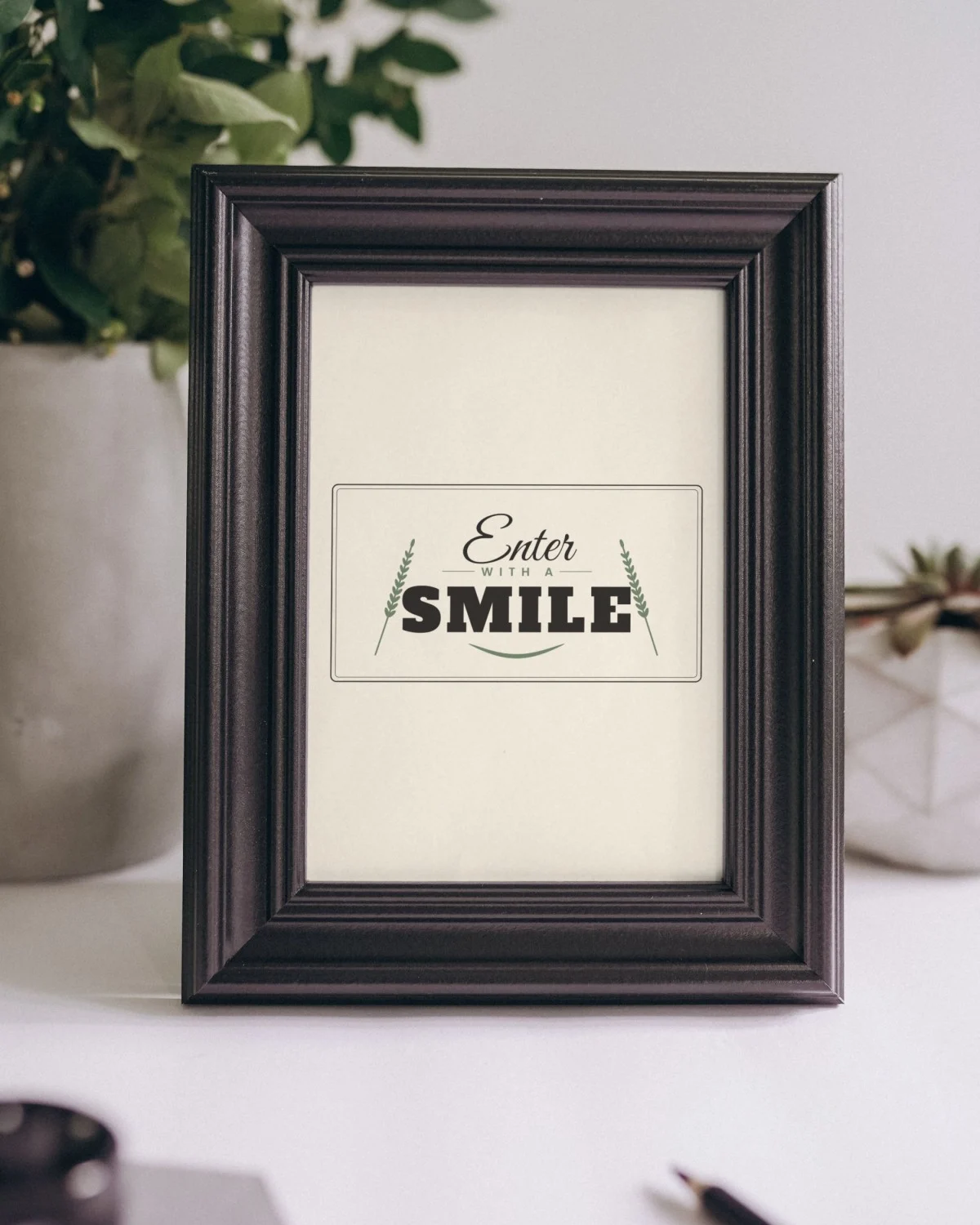
- A door or wall sign. Stencil vinyl or adhesive vinyl on wood. Try the Enter With a Smile door sign.
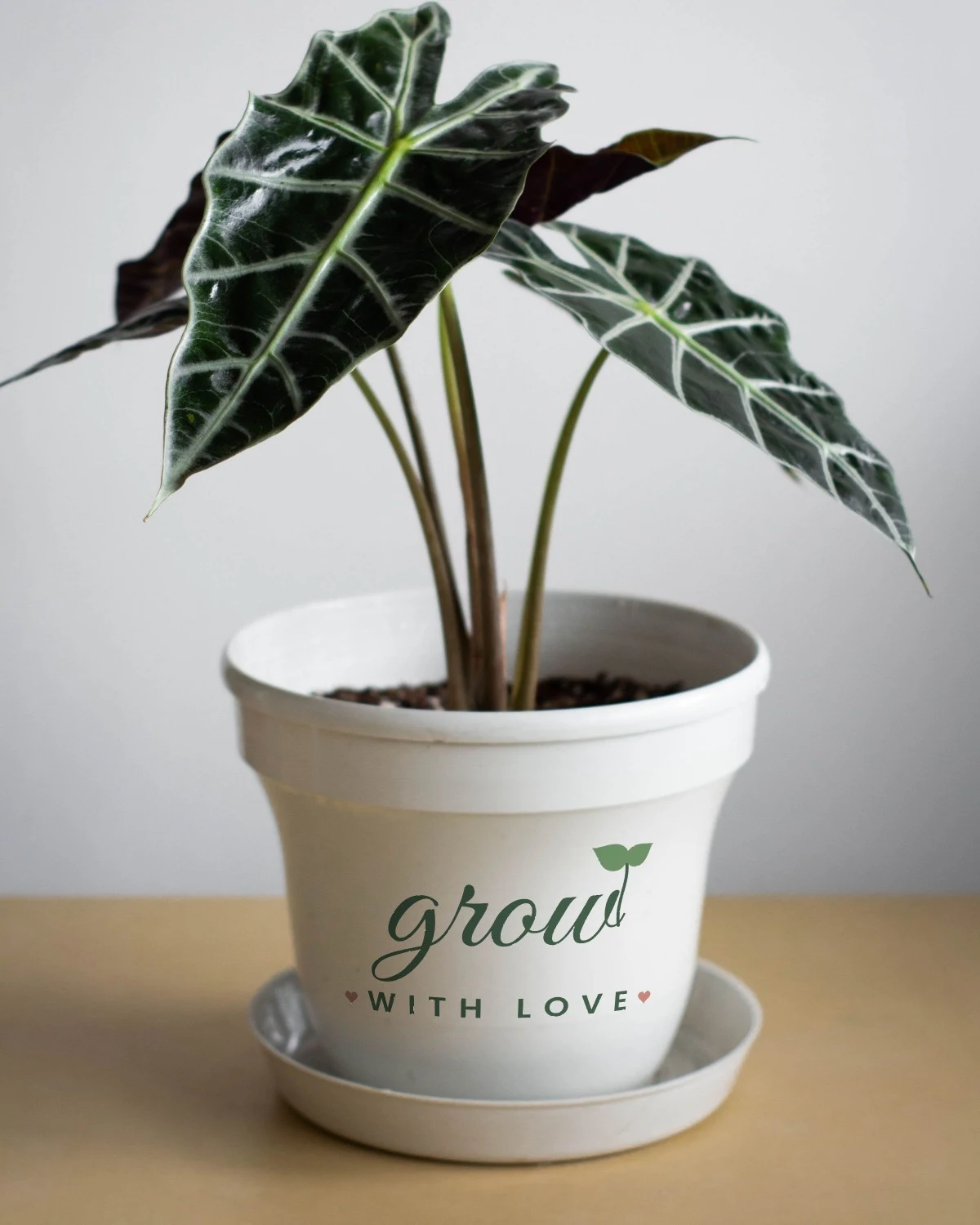
- A plant pot decal. Small, quick and a nice gift. Try the Grow With Love decal.
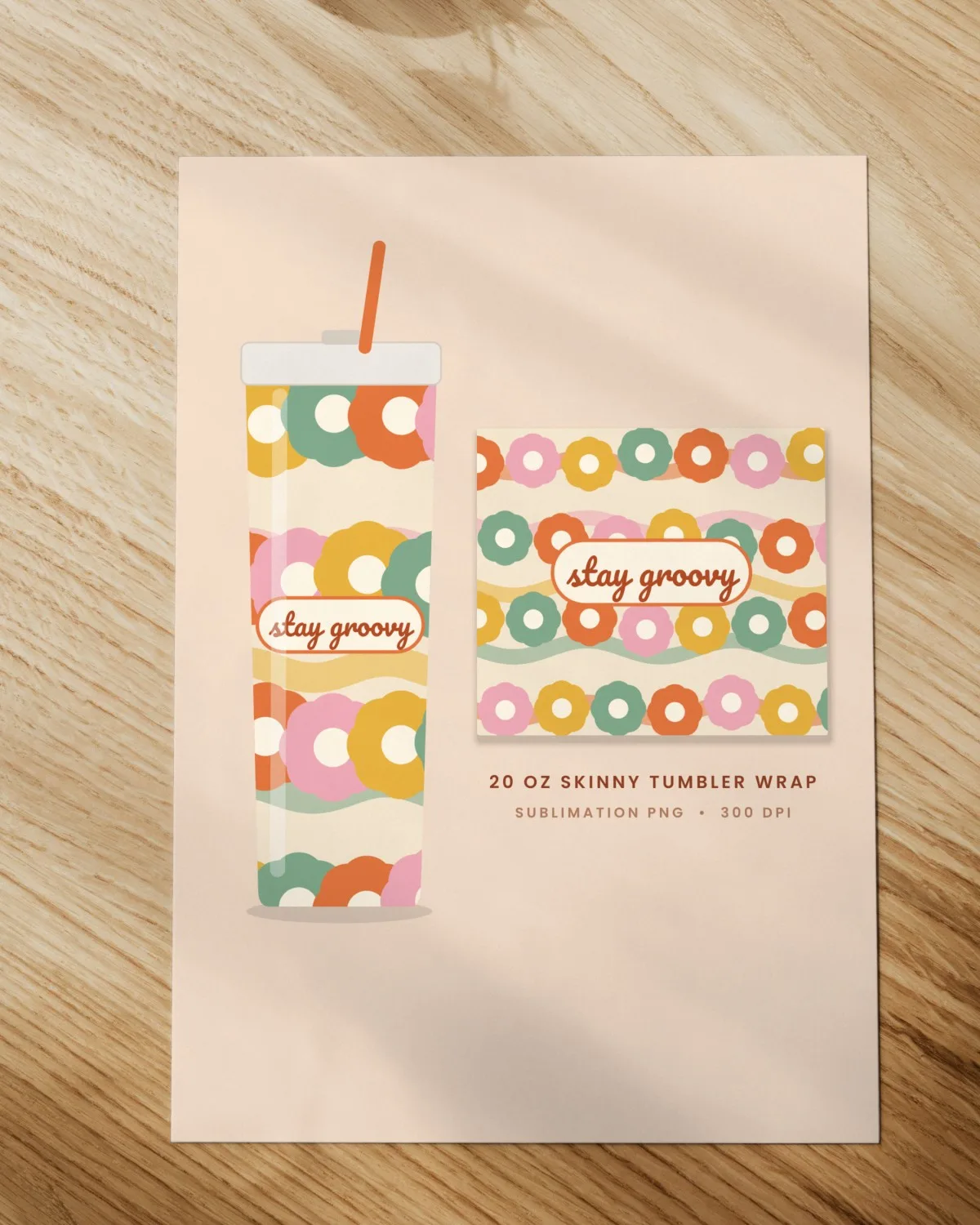
For sublimation, use the PNG version instead of the SVG. Our sublimation for beginners guide explains why.
Troubleshooting free SVGs
"Your file includes unsupported items." The SVG has a gradient, a pattern fill, a mask, live text or a photo inside. Cricut's unsupported items page lists each fix. The quick fix is to upload the PNG instead.
The design uploads as one solid black shape. Some SVGs are drawn as one compound shape. Ungroup it, then use Contour to hide the parts you don't want cut.
The upload fails with no clear reason. Check the path count. Cricut caps SVGs at 5,000 paths. Very detailed files, and traced photos, can go over it.
The design comes in tiny or huge. SVG files carry a size, but not every program saves it the same way. Resize on the Canvas with the proportions locked. Use the size printed on the design page if there is one.
Letters fall apart after cutting. The script font wasn't welded. Select the text and use Weld before you cut, so overlapping letters cut as one shape.
Small pieces lift or tear when you weed. The design is too small for the material. Make it bigger, use a finer-cut setting, or pick a design with fewer details.
What a good free cut file looks like
Use this as your quick quality bar for any free SVG, from any site:
- Flat color shapes only, with text turned into outlines.
- One layer per color, so each color cuts from its own sheet.
- No hairline details that a blade can't follow.
- A PNG alongside the SVG, so you can cut or print.
- A clear license on the download page.
On Makerloom, every design page lists the formats that design ships, shows the license, and has a listing photo of the design on a real product or framed on a wall. Every design is free, with no sign-up. You can save favorites in your browser without an account, and a free weekly email shares the newest designs.
Get started
Pick one simple design, run the 10-point check, size it for your machine and cut a test piece on scrap first. That one habit saves more vinyl than any other tip here.
Browse all free SVG cut files, see our home decor designs for decals, or start with 7 easy first projects. And if you're weighing free files against paid shops, our guide to sites like Etsy for printables compares the options.
Frequently asked questions
Are free SVG files safe to download?
An SVG from a site you know is generally fine. It is a text file that describes shapes. Stick to the designer's own site or a known library, and skip pages that make you click through pop-ups or install a "downloader". If a ZIP holds an .exe or another program, delete it. A real cut file never needs to run anything.
Can I sell what I make with a free SVG file?
Only if the license says so. Free does not mean free to sell. Public domain files can be used for anything. Creative Commons files marked NC are for noncommercial use only. Most Makerloom designs allow selling physical items made with the design, up to 500 per design, but never the file itself. Read the license on the page you downloaded from.
Why won't my free SVG upload to Design Space?
Cricut Help lists the usual causes. The file may have pattern or gradient fills, clipping paths, live text, linked images or an embedded photo. SVGs with more than 5,000 paths also fail. If the file is a ZIP, unzip it first and upload the .svg inside. If none of that fixes it, upload the PNG version as a single layer instead.
Do free SVG files work with a Silhouette Cameo?
Yes, but not in the free Basic Edition of Silhouette Studio. Silhouette America says SVG import comes with the paid Designer Edition upgrade and above. On Basic Edition you can use a DXF version if the designer offers one, or trace a PNG with the built-in trace tool. Our guide on uploading SVGs to Cricut covers the Cricut side.
Can I use free SVG files on the Cricut Design Space mobile app?
Yes. On iPhone, iPad and Android, tap Upload, then browse files to find the SVG in Files, iCloud, Dropbox or Google Drive. Cricut Help notes that DXF files don't work in the iOS and Android apps, so stick with the SVG. Save the file to your phone first if you downloaded it on a computer.
What is the best free SVG file for a first Cricut project?
Pick a one-color design with chunky shapes and no tiny letters, like a sun, a heart or a short bold word. It cuts cleanly in vinyl or iron-on and is easy to weed. Our 7 easy first projects post lists beginner-friendly ideas with free files for each.
Sources
- How to upload images into Design Space (Cricut Help Center)
- Image uploads: unsupported items (Cricut Help Center)
- How to change the mat or material size in Design Space (Cricut Help Center)
- Cricut Joy Quick Start Guide (Cricut Help Center)
- How large can I Print Then Cut? (Cricut Help Center)
- Selling things you've made using Cricut designs (Angel Policy) (Cricut)
- Silhouette Studio editions (Silhouette America)
- About CC Licenses (Creative Commons)
- Free SVG vector files (CC0 public domain) (FreeSVG)
Free designs for this project
Boho Sun SVG Cut File, Rise and Shine Celestial Sun Clipart, Cricut and Silhouette Design
FreeDigital download
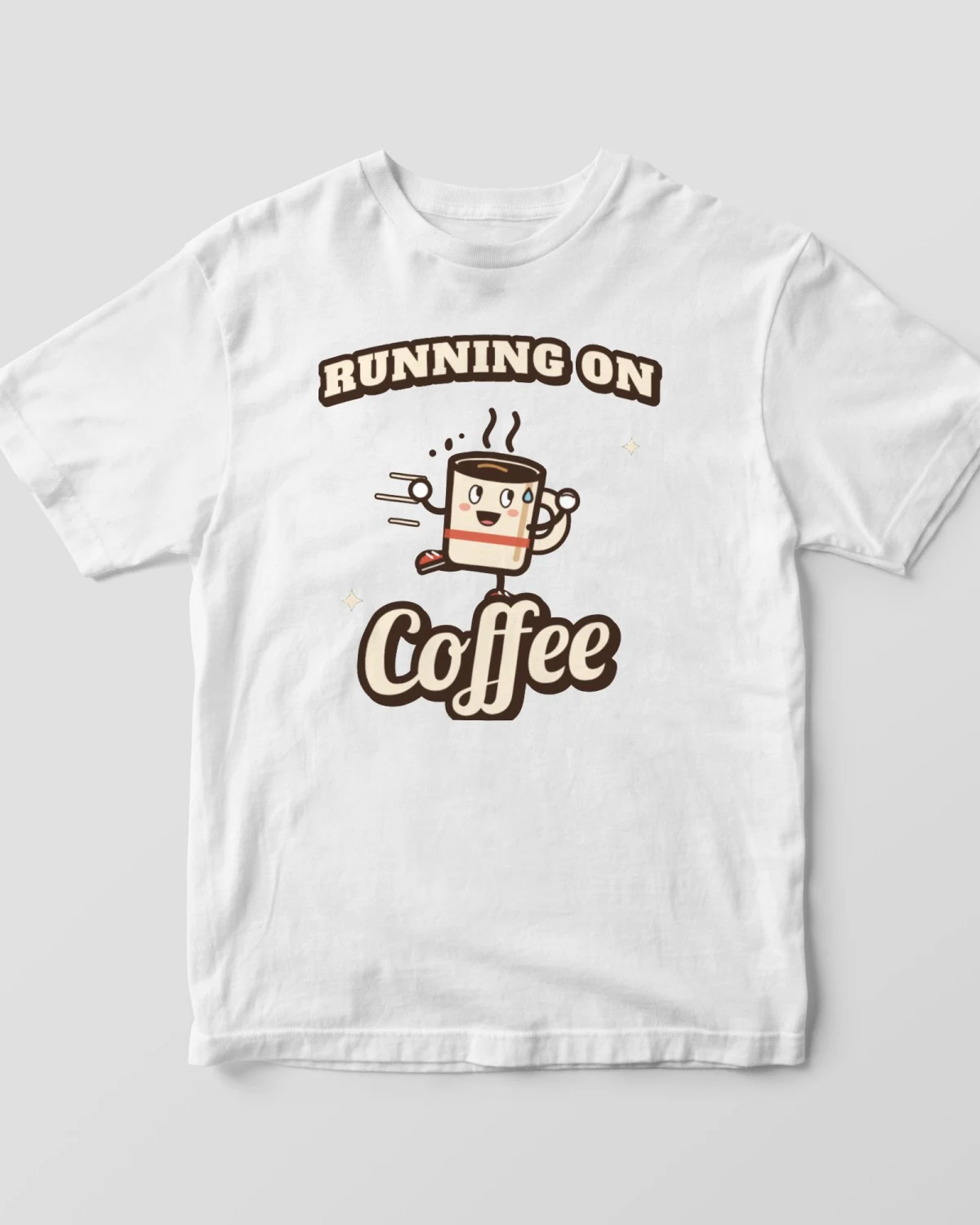
Running on Coffee SVG, Funny Coffee Shirt PNG, Retro Cartoon Coffee Cup T-Shirt Design, Coffee Lover Sublimation, Cricut SVG
FreeDigital download
Keep reading
Free SVG Files for Cricut Beginners: 7 Easy First Projects
New to Cricut? Seven beginner-friendly projects, the materials each one needs, and free SVG files to start with, from a simple tote to a farmhouse sign.
How to Make a T-Shirt with Cricut Iron-On Vinyl Using a Free SVG
From download to first wash: size, cut, weed and press a free SVG onto a T-shirt with Cricut iron-on vinyl (HTV), with the settings that make it last.
Sublimation for Beginners: Putting a Free PNG Design on a Mug or Tumbler
What sublimation is, the supplies you need, and how to print and press a free PNG design onto a sublimation mug or tumbler for bright, dishwasher-tough results.